


HIGHLIGHTS
- Following the recent launch of Elden Ring: Nightreign, the game is not working on PC and consoles due to multiple crashes and black screen problems.
- Game publisher FromSoftware Inc. will soon release a hotfix for all these performance issues.
- Until the hotfix is launched, you can try adjusting graphics settings, verifying file integrity, and ensuring your system meets the game’s requirements to minimize issues.
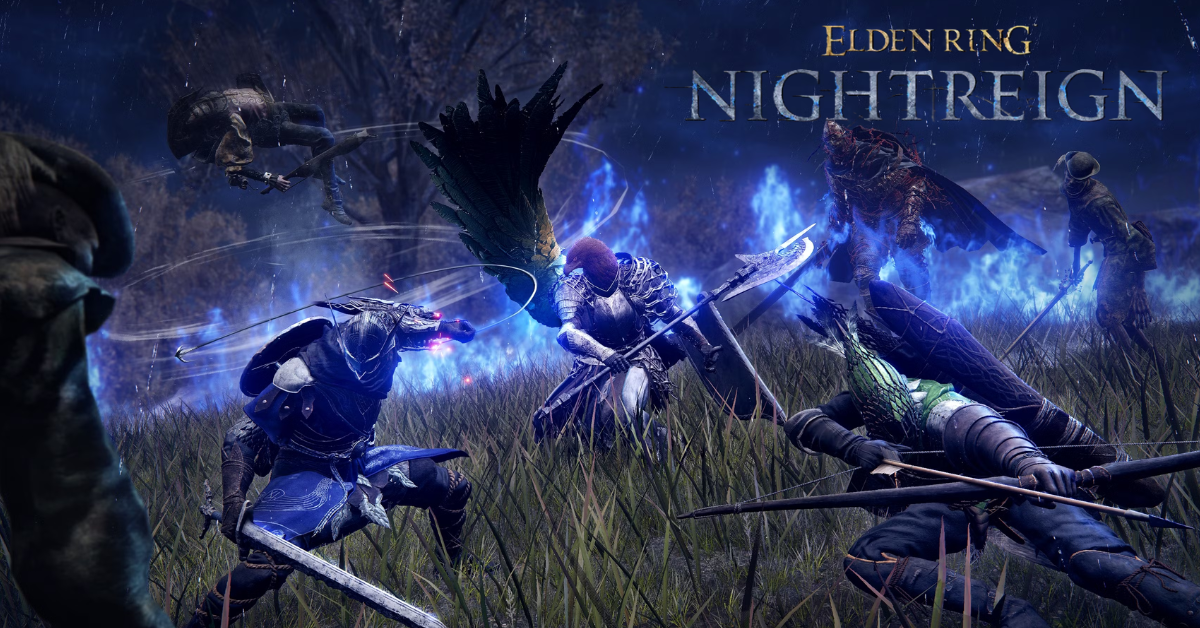
The Elden Ring Nightreign, a standalone game from the Elden Ring universe, is now finally out after a long wait since Shadow of the Erdtree.
Unlike the original Elden Ring, Nightreign offers team-based gameplay, where players form groups of three to battle the returning bosses.
Despite a long wait for the game’s release, players are still unable to enjoy the game fully, as it is now experiencing issues on consoles and PC due to crashing and black screens.
Elden Ring Nightreign Not Working On PC
Elden Ring Nightregin has now been globally released to the public, yet the game is being quite unplayable for many players on both PC.
The game is experiencing frequent crashing and loading issues, making it quite frustrating for players who have been waiting for the game’s launch.
While game developers may soon release a day-one patch or a new update to address the existing issue, players can try to check for updates on their own devices to minimize the problem.
Born of sorrow, shaped by the Night.
When vengeance stirs, the dead rise in answer.Pre-order #ELDENRING #NIGHTREIGN: https://t.co/aQ7K2KzCI1 pic.twitter.com/CPYd2fuHee
— ELDEN RING (@ELDENRING) May 28, 2025
Moreover, it’s not new that Elden Ring is facing such an issue, as previous series have also had similar issues, such as crashing on startup and displaying a Black Screen.
To make sure that your device is compatible with the game, you can check the game system requirements and analyze your device to minimize any issues.
Verify Game File Integrity
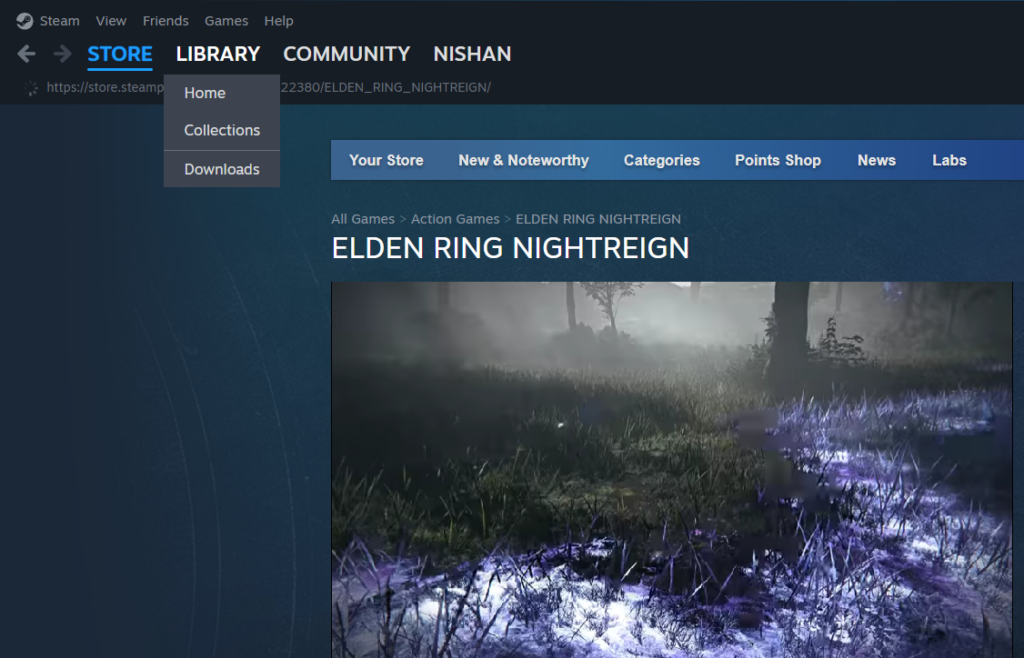
- Launch Steam
- Navigate to the Library
- Right-click on Elden Ring Nightreign and Tap properties
- From Local Files, click Verify integrity of game files
Once you have completed these steps, wait for a few minutes and then relaunch the game to check if the issue persists.
Updating your GPU drivers to ensure compatibility and adjusting graphics settings to optimize performance will also help resolve existing issues.
Update System Drivers
Sometimes, outdated drivers can also be the cause of multiple crashes in the game. To resolve this, you can try following the mentioned steps;
- Open the Device Manager
- Right-click on Display Adapters and select Update Driver.
- Choose Search Automatically for Updated Driver Software.
- Follow the prompts to update your graphics drivers.
- Restart your computer and relaunch the game
Players can also try reducing background applications, checking for Network Instability, and running the game on different servers.

