



HIGHLIGHTS
- Players are facing issues with the DS4 controller in Rematch on PC since the game does not fully support PlayStation controllers yet.
- You can play Rematch with a DS4 controller by using an third-party app that makes it work like an Xbox 360 controller.
- Another way to play with a DS4 controller is to use Steam by enabling controller support and adding the game to your library if needed.
Rematch is a fast and fun football game where you control a single player on the field. You can switch between attacking, defending, and even goalkeeper during the match.
The game is played in a virtual arena with no fouls, no offside, and no ball going out of the play area.
Players can enjoy several online multiplayer modes, including 3v3, 4v4, and a ranked 5v5 mode, on Rematch at launch.
Controller Support In Rematch
You can play Rematch using a keyboard and mouse, an Xbox controller, or a PlayStation controller like the DS4.
However, some players have found that the DS4 controller does not work when they try to play the game on PC.
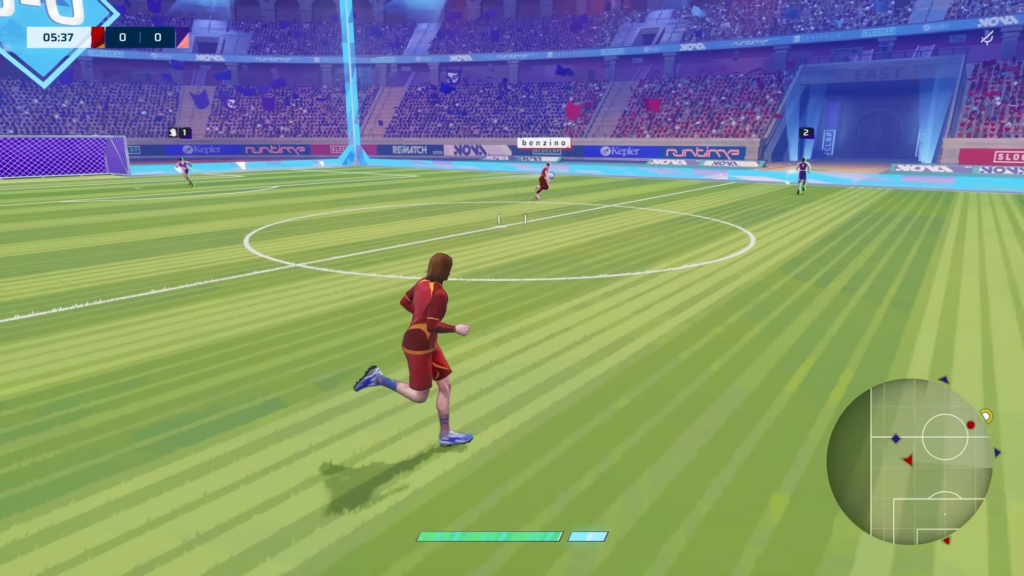
Further, even if the controller is connected via a cable and the game is opened through the Xbox App, the game does not recognize the controller.
This issue occurs because Rematch may not fully support PlayStation controllers on PC at the moment.
Playing Rematch With The DS4 Controller
There are a few ways to play Rematch with a DS4 controller. You can use a third-party app that makes your DS4 controller act like an Xbox controller.
After setting up the app, you need to go to the settings and set the “Controller Emulation” option to Xbox 360 controller.
You can use the DS4 controller and play the game once you have done all the required steps.
Further, players can use Steam to play with a DS4 controller. To do so, players need to enable all controller settings by opening the Controller tab inside Steam settings.
If your game is not on Steam, players can add it to their library by following the listed steps.
- Open Steam Library
- Click Add a Game at the bottom left
- Select Add a Non-Steam Game from the pop-up menu
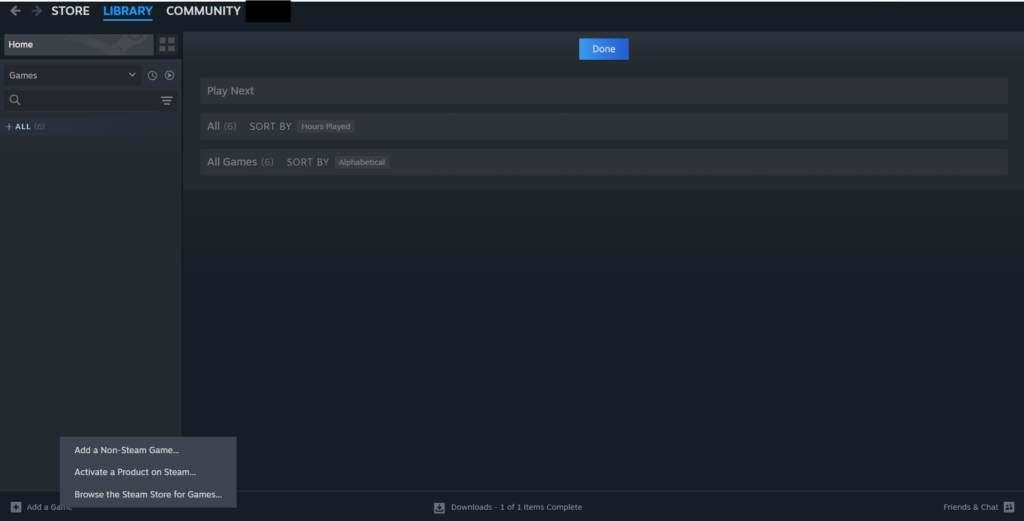
- Select the games that you want to add
- Press “Add Selected Programs” to add them to the Steam Library
Finally, until the game adds full support for PlayStation controllers, these are the best way to use a DS4 on PC.

